






6b. Manage Your Tags
-
To edit or delete a tag, swipe left on the tag.
Make sure your driving log device is connected and nearby.
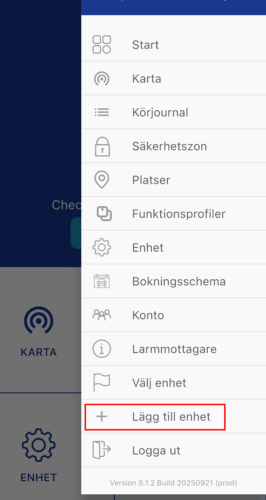
Open the app and select “Add to device” from the menu on the right.
(This function is only available in the app.)
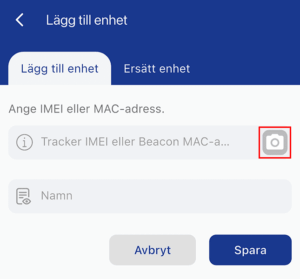
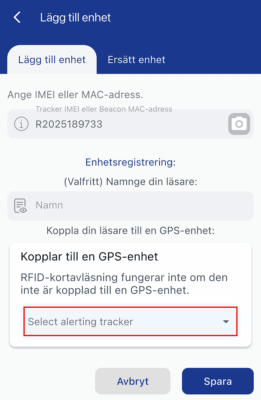
Press the camera icon.
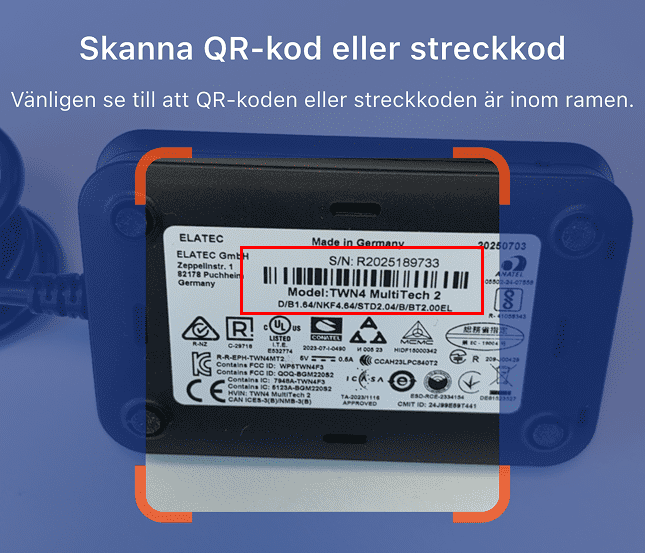
Scan the barcode on the back of the RFID reader.
Give the RFID reader a name.
Select which trip log device it should be connected to.
Once the RFID reader has a name and is connected, press “Save.”
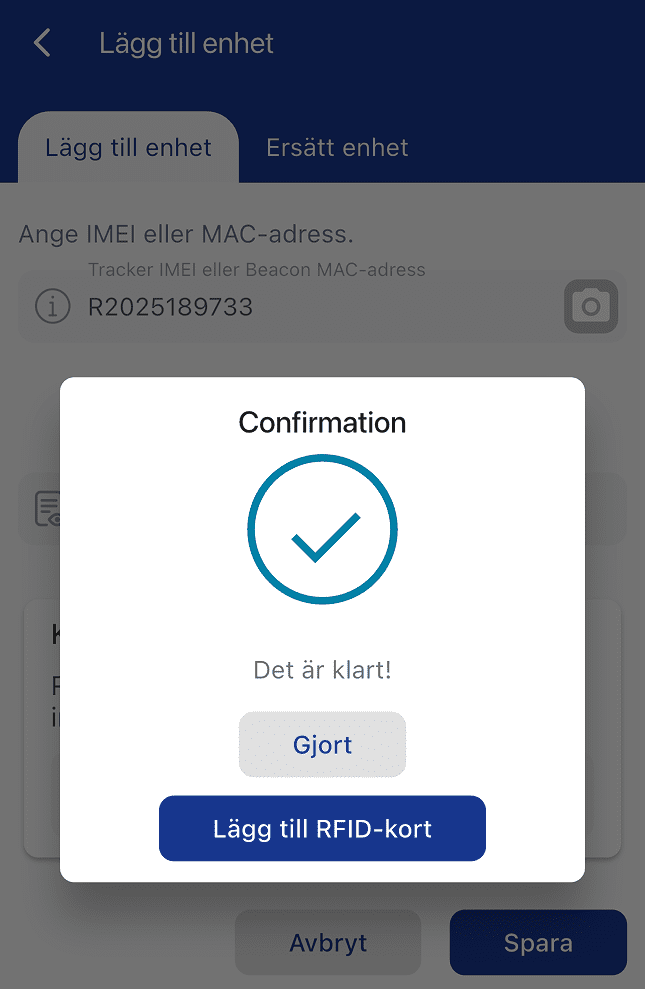
“Done” – if you are finished.
“Add RFID tag” – to register a tag immediately.
Connect the RFID reader.
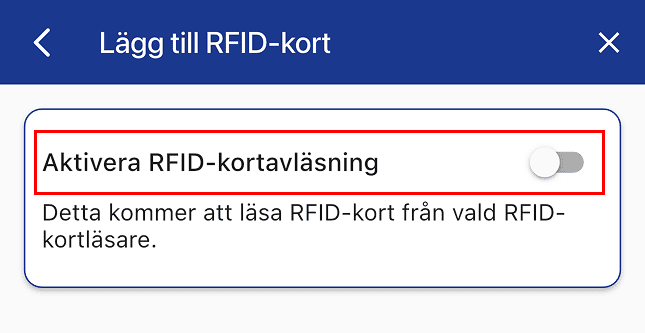
If you selected “Add RFID tag,” a popup will appear:
Enable “RFID tag reading.”
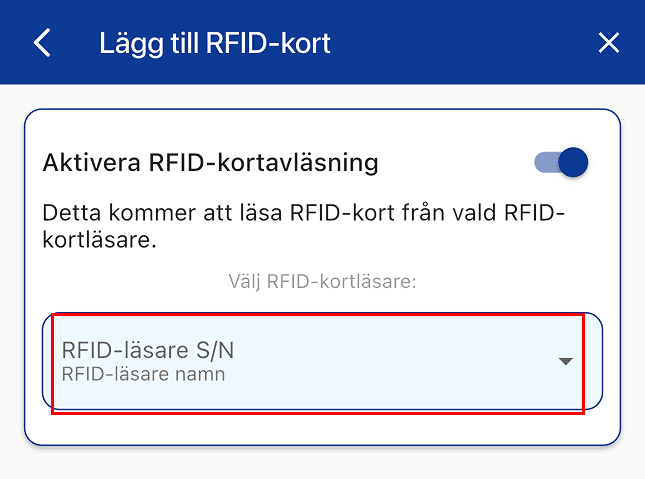
Select which RFID reader should be used to register new tags.
After selecting the reader, a screen will appear where you can scan the tag.
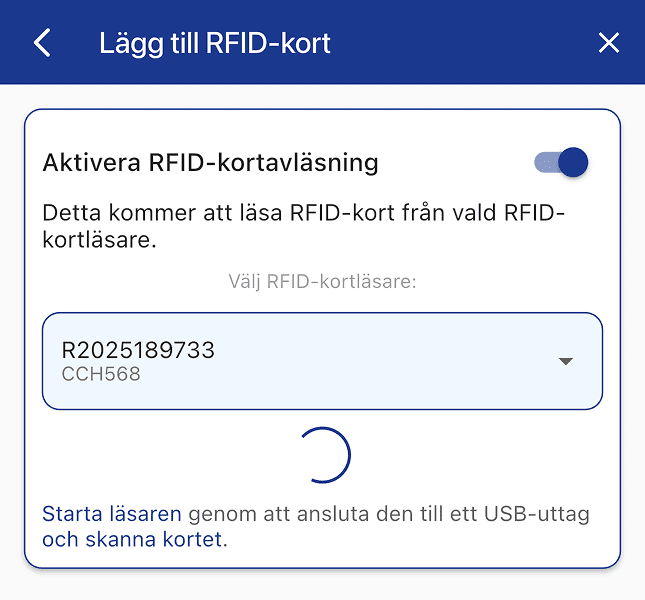
Scan the RFID tag.
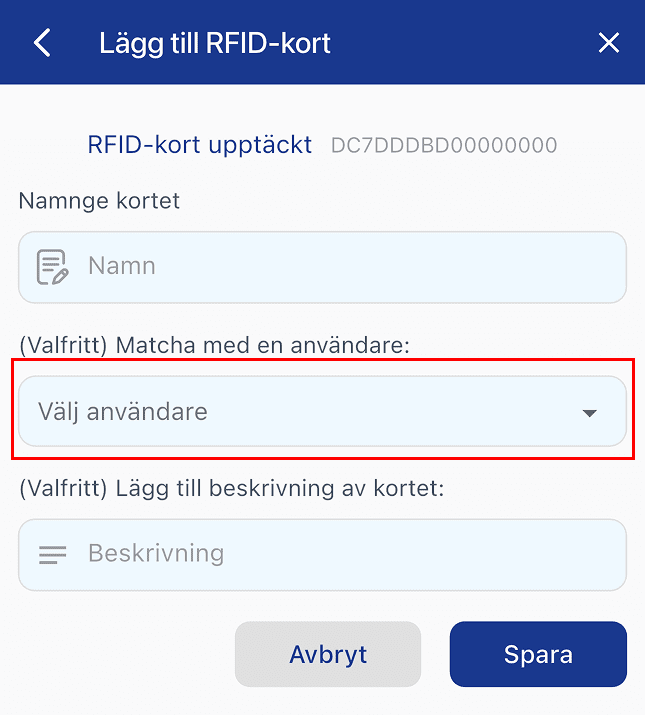
Give the tag a name and assign it to a user.
Note: A user can have a maximum of one tag assigned.
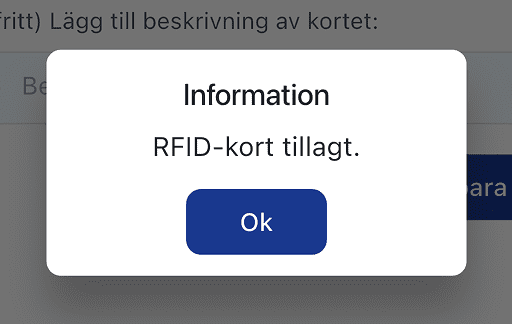
Once everything is completed, a confirmation popup will be displayed.
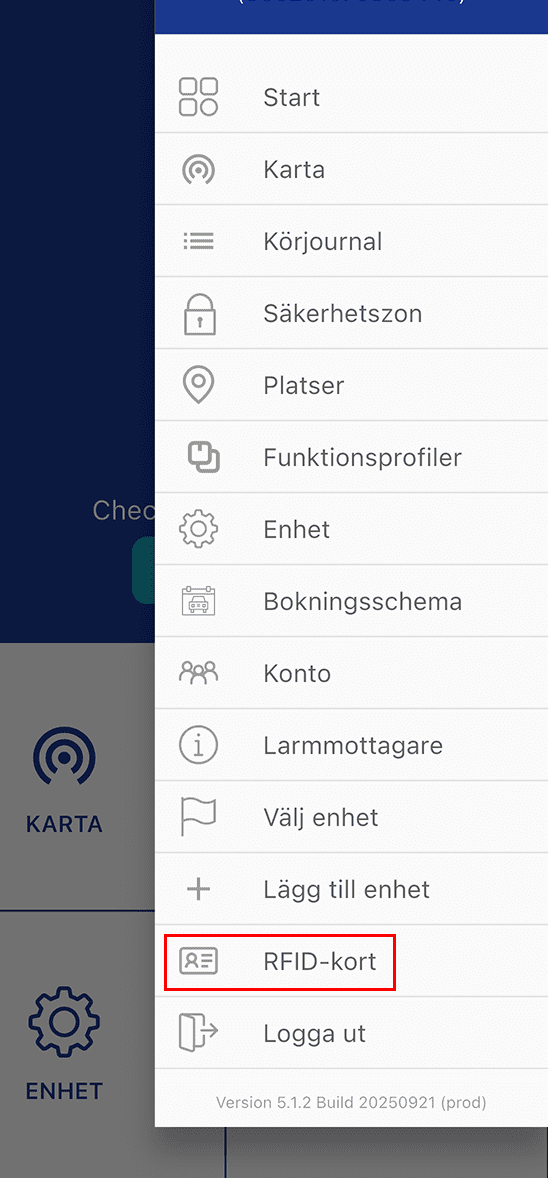
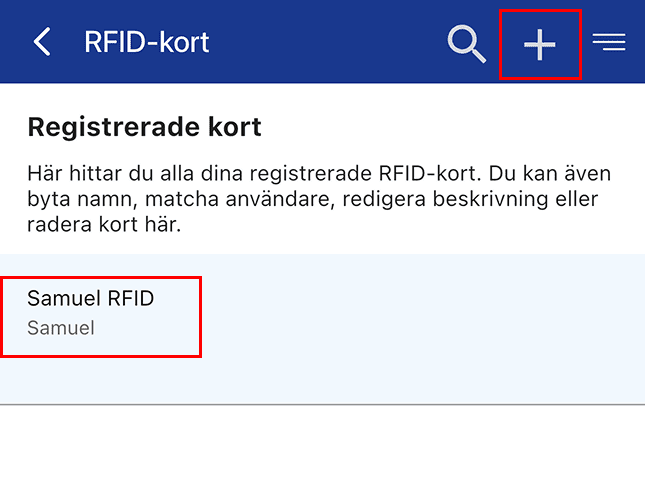
You can find all tags under the new menu tab.
Tap “+” to add more tags (repeat steps 4–5).
Genom att fylla i detta formulär godkänner du att vi hanterar dina uppgifter. Läs mer hur vi hanterar din data här: Länk till integritetspolicy
Genom att fylla i detta formulär godkänner du att vi hanterar dina uppgifter. Läs mer hur vi hanterar din data här: Länk till integritetspolicy
En remplissant ce formulaire, vous acceptez que nous traitions vos données personnelles.
En savoir plus sur la gestion de vos données : lien vers la politique de confidentialité.
Genom att fylla i detta formulär godkänner du att vi hanterar dina uppgifter. Läs mer hur vi hanterar din data här: Länk till integritetspolicy
En remplissant ce formulaire, vous acceptez que nous traitions vos données personnelles.
En savoir plus sur la gestion de vos données : lien vers la politique de confidentialité.